Activity Width
Introduction
The activity’s width determines how it appears on the screen in the student view.
By default, the activity width is set to 100%, meaning it will span the entire width of the available space. However, you can change this setting to create different layouts.
Student View
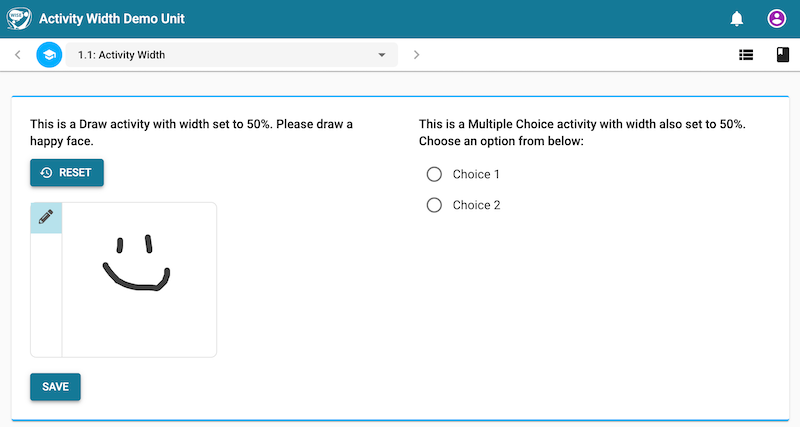 The activity widths of two activities are set to 50% in this example, and they appear side-by-side.
Authoring Tool View
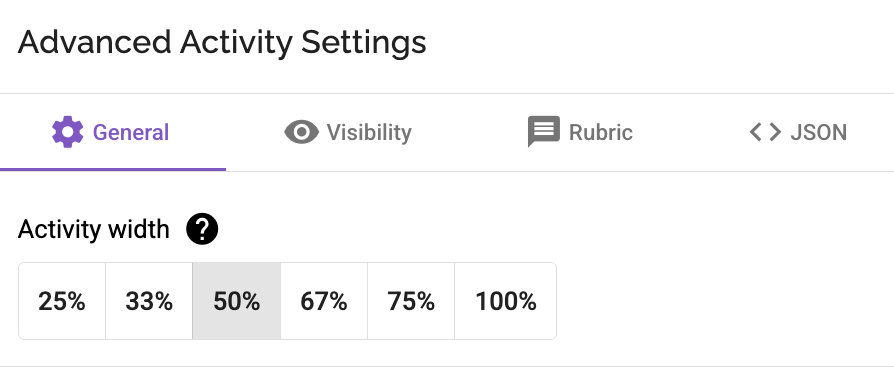 You can change the activity width in the authoring tool
Available Width Settings
You can set the activity width to one of the following percentages:
- 25%
- 33%
- 50%
- 67%
- 75%
- 100%
Creating Side-by-Side Layouts
If you want activities to appear next to each other, you can adjust their widths so they fit together on the same line. For example:
- If two adjacent activities are set to 50% each, they will appear side-by-side.
- You can also mix widths, such as setting one activity to 67% and the adjacent one to 33%, and they will also appear side-by-side.