Draw Activity
Introduction
The Draw activity empowers students to express their ideas and demonstrate understanding visually. It provides a robust and customizable canvas where students can create diagrams, models, and illustrations directly within the WISE platform.
Student Experience
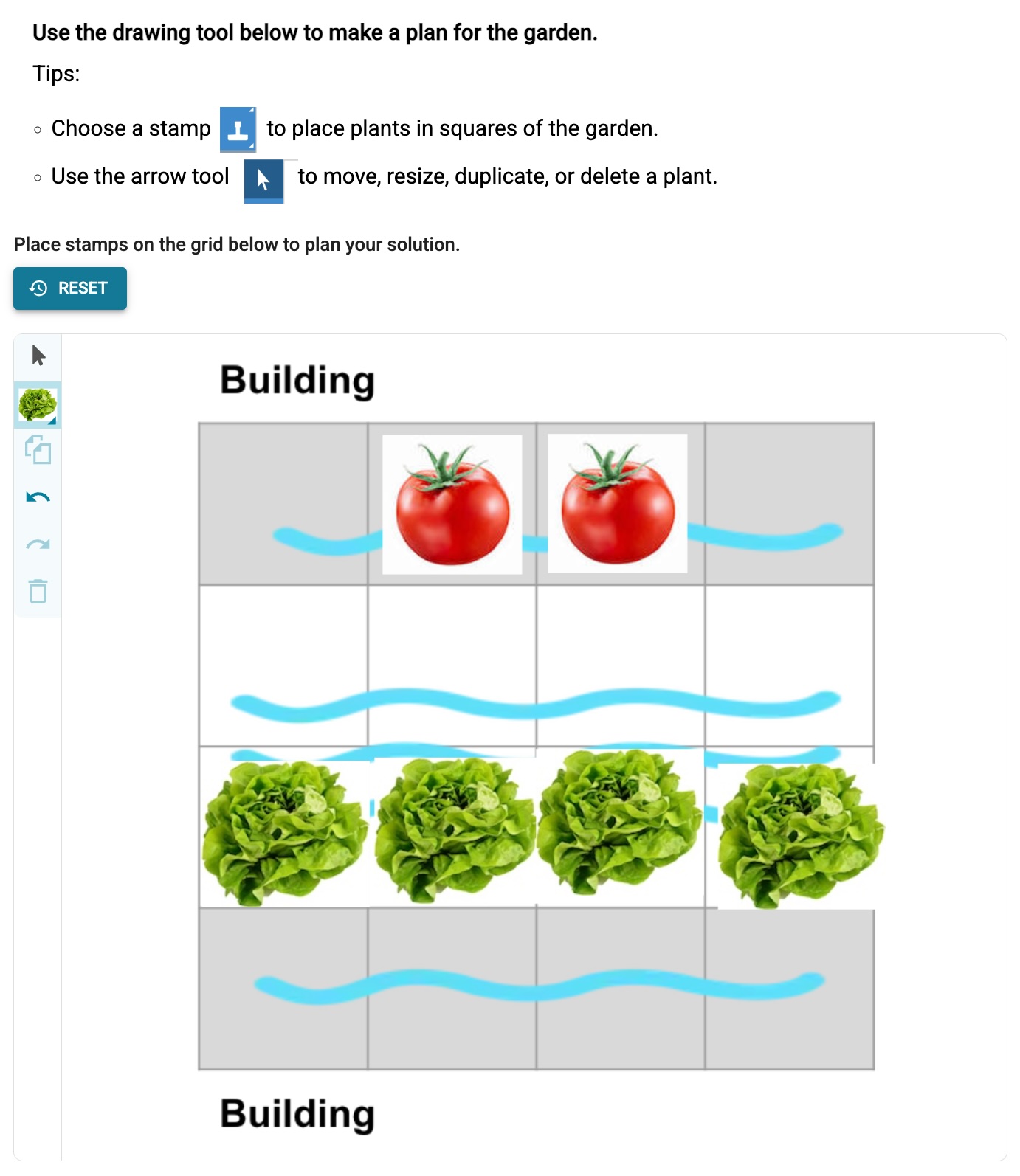 The student view of the Draw activity. In this example, students are asked to plan where to plant different types of plants in a school garden.
Depending on the author’s configuration, students can engage with the Draw activity in various ways:
- Creating Models: Build complex representations using custom stamps (e.g., creating molecules from atom stamps).
- Annotating: Add text, shapes, and lines over providing background images to highlight key features or explain concepts.
- Free Drawing: Use free-hand tools and shapes to sketch out ideas from scratch.
- Refining Work: Iteratively improve their drawings using essential tools like Undo/Redo, element layering (Send Forward/Back), and cloning.
Authoring Capabilities
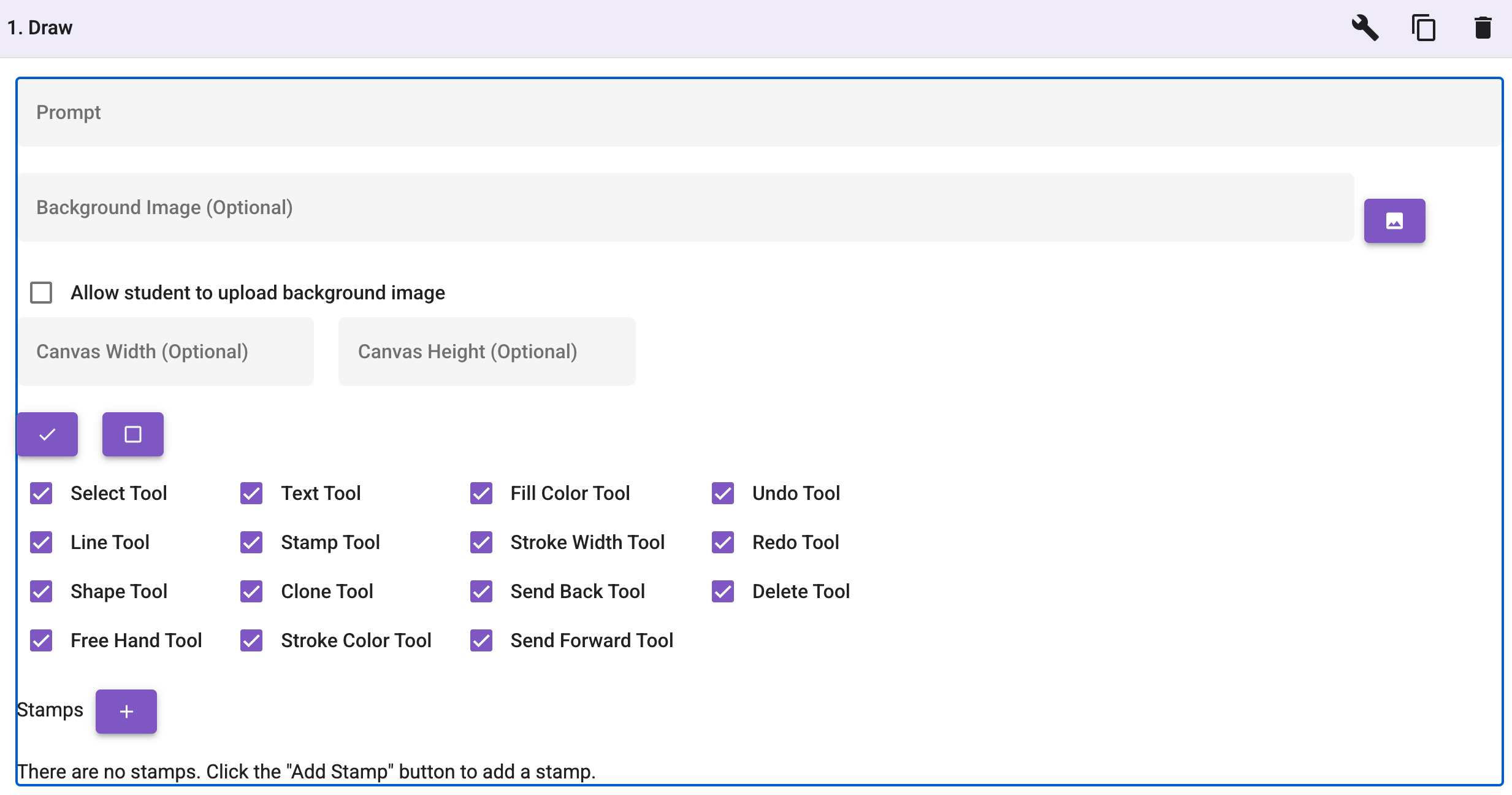 The authoring view of the Drawing activity, showing the available tool options and configurations.
When creating a Draw activity, authors have fine-grained control over the student experience. The activity can be customized to offer a focused set of tools or a fully-featured drawing environment:
- Customizable Tool Palette: Authors can select precisely which drawing tools are made available to students. This ensures the interface is perfectly suited to the specific task. The selectable tools include:
- Basic Drawing: Free Hand Tool, Line Tool, Shape Tool, Text Tool
- Editing Options: Select Tool, Clone Tool, Delete Tool
- Styling: Fill Color Tool, Stroke Color Tool, Stroke Width Tool
- Layering: Send Forward Tool, Send Back Tool
- History: Undo Tool, Redo Tool
- Stamps: Stamp Tool
-
Custom Stamps: One of the most powerful features of the Draw activity is the ability for authors to define custom stamps. For example, in a chemistry unit, authors can provide “atom” stamps (like Carbon, Oxygen, Hydrogen) allowing students to easily construct and visualize molecules.
-
Background Images: Authors can set a specific background image for the canvas. This is ideal for providing worksheets, maps, or diagrams that students need to annotate or draw over.
-
Student Image Uploads: Authors can choose to “Allow student to upload background image”, giving students the freedom to bring in their own references or diagrams to work from.
- Canvas Configuration: The physical dimensions of the drawing area can be controlled using the optional Canvas Width and Canvas Height settings.